Troubleshooting Quest
Unfortunately, there is no way to remotely connect to a quest headset for troubleshooting, If an issue comes up with a headset, the player will need to take off the headset and give it to the VR operator to fix the problem.
Quest headset not joining game
- Confirm the quest is connected to the correct wireless network.
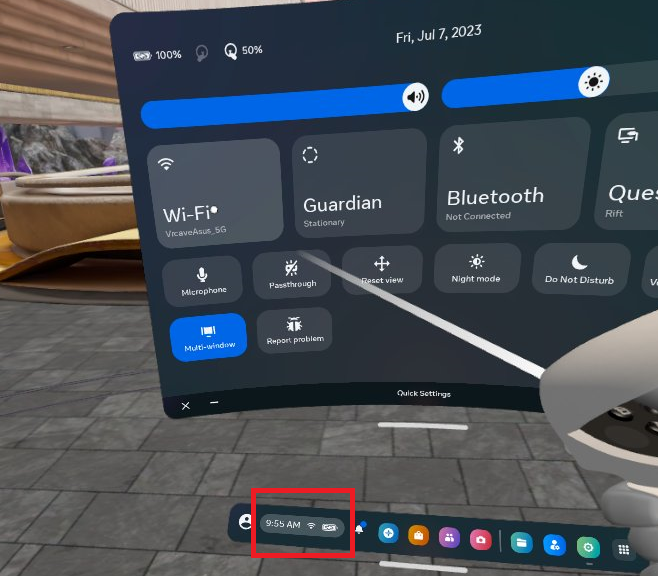
- Check that the quest is trying to connect to the server. You should periodically see a message pop up in the upper lefthand corner of the HMD. If the are no messages, then
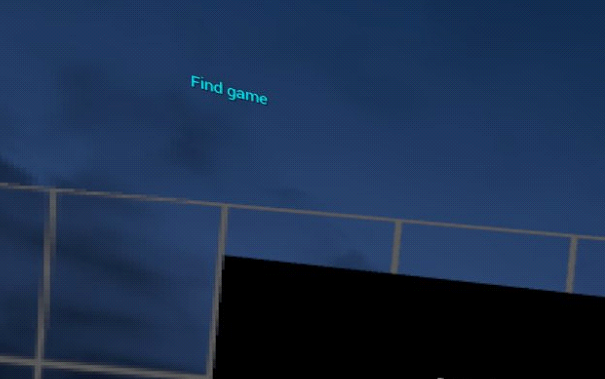
-
Close the VRCave Library application and start it up again.
-
Check the server PC for any Firewalls that are overriding Windows Defender Firewall. Try disabling them temporarily to see if that is why headsets are not joining the server. If they are, find a way to create a firewall exception for vrcavelibrary.exe to allow for internet access.
- NordVPN has a firewall that runs more secretly than other firewalls. It is best to just uninstall NordVPN if it present on the server computer.
Quest players cannot see each other after starting game or changing games.
- This issue should be very rare, however, we have discovered that other games using Unreal Engine, eg. HeroZone, can take over a local network on a server PC. Make sure any other game is shut down, then restart the vrcave lobby and try to connect again.
Quest player is frozen in place in the game
- This usually happens because the quest lost tracking and a popup came up, This popup has a button on it and most peoples first reaction is to press the button. unfortunately, the button turns off tracking.
- Minimize the vrcave librabry by holding the oculus button and find press the tracking mode button. re-establish roomscale tracking.
Quest is not finding its guardian boundries
- This happens sometimes on startup, the quest does not recognize the room for whatever reason. put on the headset and look around the room slowly. eventually the guardian bounds will be found.
- If the guardian bounds do not recover, then you can ethier restart the Quest headset, or begin the process of redrawing new guardian bounds.
Fixing calibration issues
-
VRCAVE calibration should persist when the headsets go to sleep or are shut down. However, it is possible for the calibration to be lost. This usually happens if the headset lost the guardian, found another from memory, and returned to the previous guardian, or the guardian had to be redrawn.
-
In this case, the best thing to do is:
- Reboot the headset
- Redraw the guardian (if it is not restored on it’s own)
- Perform VRCAVE calibration
Sideloading is not detecting the headset
When you are sideloading to a headset, you should get 2 popups in the headset when it is plugged into the PC, One will ask to allow access to files on the headset. the other will ask to allow USB debugging. the USB debugging popup is the one that allows for sideloading and will only come up when the Install_VRcaveLibrary-arm64.bat has been run at least once, you you are not getting that popup when you plug in the headset and run the install file, try the following steps:
-
If you have not sideloaded on the headset before, you will have to follow these instructions
-
If the headset has been sideloaded before, Go to your Oculus App on your phone or tablet and navigate to the devices page.
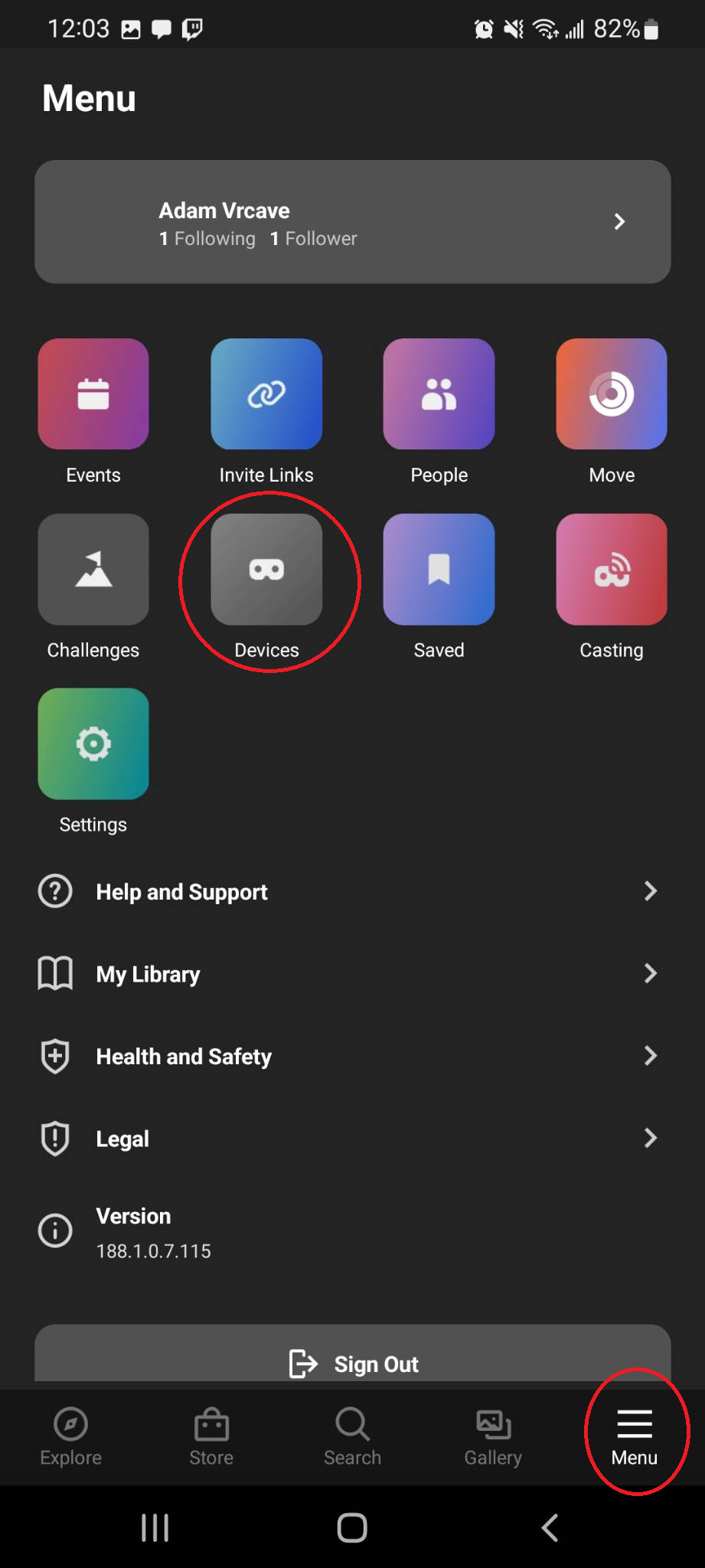
-
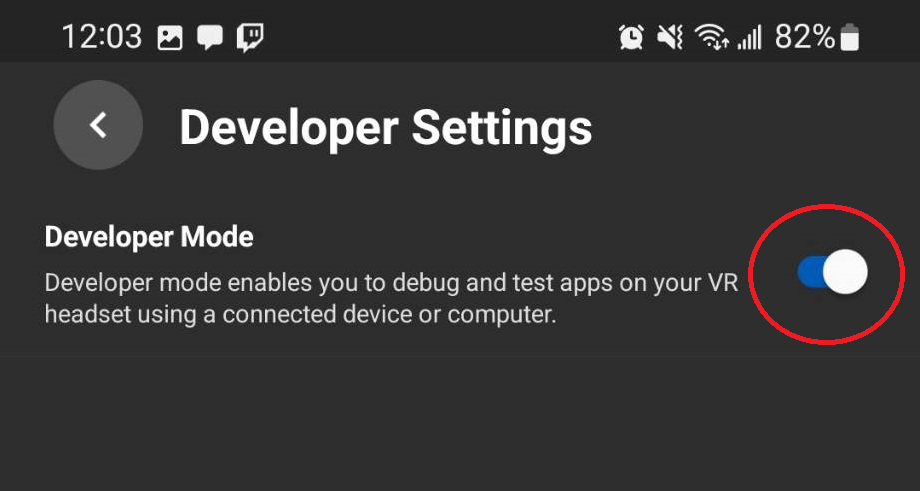
Select the headset from the list, and then touch the Developer Mode option in the headset settings section
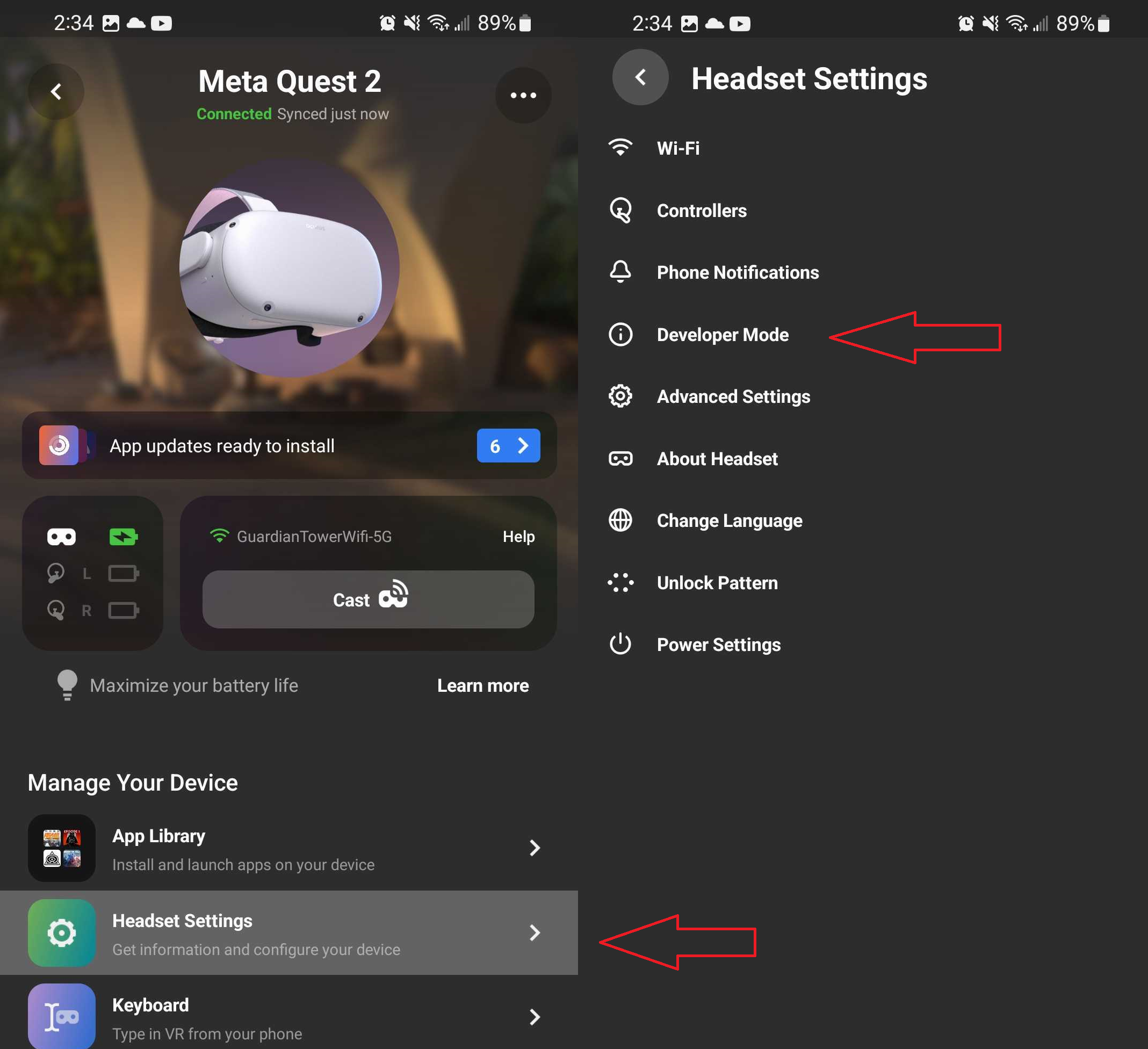
-
Enable Developer Mode, If it is already enabled, disable it, then re-enable.
-
If the headset continues to fail to sideload, log out from the app, log back in and repeat steps 2-4